Reiciendis voluptatibus...

At vero eos et accusamus et iusto odio dignissimos ducimus qui blanditiis praesentium voluptatum deleniti atque corrupti...

Reiciendis voluptatibus maiores

Asumenda omnis dolor...

At vero eos et accusamus et iusto odio dignissimos ducimus qui blanditiis praesentium voluptatum deleniti atque corrupti...

Asumenda omnis dolor

Voluptates repudiandae ...

At vero eos et accusamus et iusto odio dignissimos ducimus qui blanditiis praesentium voluptatum deleniti atque corrupti...

Voluptates repudiandae sint

Necessitatibus saepe ev...

At vero eos et accusamus et iusto odio dignissimos ducimus qui blanditiis praesentium voluptatum deleniti atque corrupti...

Necessitatibus saepe eveniet

Omnis dolor repellendus...

At vero eos et accusamus et iusto odio dignissimos ducimus qui blanditiis praesentium voluptatum deleniti atque corrupti...

Omnis dolor repellendus

Pomnis voluptas assumen...

At vero eos et accusamus et iusto odio dignissimos ducimus qui blanditiis praesentium voluptatum deleniti atque corrupti...

Pomnis voluptas assumenda

Harum quidem rerum...

At vero eos et accusamus et iusto odio dignissimos ducimus qui blanditiis praesentium voluptatum deleniti atque corrupti...

Harum quidem rerum
  • Reiciendis voluptatibus maiores
  • Asumenda omnis dolor
  • Voluptates repudiandae sint
  • Necessitatibus saepe eveniet
  • Omnis dolor repellendus
  • Pomnis voluptas assumenda
  • Harum quidem rerum
Showing posts with label COOL NEWS. Show all posts

Saturday, 18 February 2012

Must Know Keyboard Shortcuts - Windows


Note: Single letter keys are shown capitalized, but you do not have to hold Shift unless it's specified. You also don't have to type the plus sign; plus sign just means push the keys on either side of it at the same time.
 
Commonly Used OS-Level Shortcuts
1. Alt + Tab (toggle between programs)
2. Windows button + M (show desktop, i.e., minimize all windows)
3. Windows button + Tab (show all active windows in task bar)
4. PrtScn (save screen capture to clipboard; "paste" the image into an image-editing program to make it into a file)
5. Windows button (opens applications menu)

Browser Shortcuts
6. Ctrl + T (open a new tab)
7. Ctrl + Shift + t (reopens the tab you last closed; works multiple times)
8. F5 (reload page)
9. Backspace (go to previous page; works multiple times)
10. Ctrl + Tab (cycle between tabs)

Commonly Used Shortcuts in Most Applications
11. Ctrl+ Z (undo last operation)
12. Ctrl + Y (redo last operation)
13. Crtl + O (open file)
14. Crtl + S (save)
15. Ctrl + W (close active window or file)
16. Crtl + Q (quit application)

Copy-and-Pasters' Delight
17. Ctrl + A (select all in active window; e.g., select all text on page)
18. Ctrl + X (cut to clipboard)
19. Ctrl + C (copy)
20. Ctrl + V (paste)

Find, Select, and Navigate Text
21. Ctrl + F (find; helpful if you're searching for a particular word on a website or document)
22. Ctrl + Shift + down arrow (select until end of line)
23. Ctrl + Shift + up arrow (select until beginning of line)
24. Ctrl + Home (move cursor to top/start of document)
25. Ctrl + End (move cursor to bottom/end of document)
Posted by Love Ur Life 0 comments

Saturday, 14 January 2012

IBM says Mind-Reading Computers Will be Available by 2016


IBM says that  in coming next 5 years span or by 2016 users will have  access to computers which can read human minds (brain) and be able to work according to brain signals. Keyboards and mouse may be the history in coming 5 years, and would be simply used in teaching of evolution of computers.
 
This isn’t telepathy, this would be the advancement of technology that to  get a real-time stream of thoughts from an individual and put into signals which computer will understand ,obey and work accordingly.  IBM researcher  are using a simple brain-machine interface (BMI) that can detect different kinds of brainwaves and tell a computer to respond a certain way.

IBM says it’s working on technology for people to use their brains to interface with their everyday devices, like phones and PCs. “Just think about calling someone, and it happens,” IBM promises in this video:

Watch the video about   “5 in 5″ forecast:


Posted by Love Ur Life 1 comments

Thursday, 1 December 2011

6 Tips to Boost Your iPhone's Battery Life


The iPhone has always been pretty good about battery life, particularly in terms of standby time, but something changed recently—and in a big way. Reports are all over the Web about how iPhone 4S owners in particular have noticed vastly reduced standby time compared to older iPhones, on the order of 10 to 15 percent reductions per hour, although other people are saying they don't see a problem at all.

It turns out there is something to this story, though: Apple has confirmed that a bug in iOS 5, not the iPhone 4S itself, is responsible for the poor battery life many people are seeing, and said that a fix is in the works. It turns out that the iOS 5 bug means you'll also see the problem with an older iPhone, or possibly even an iPad or iPod touch, if you install the new OS on it.

Already have iOS 5? Here are six things you can do right now to boost your iPhone's battery life.

1. Set time zones manually. This time around, by default, iOS 5 tries to auto-adjust your time zone based on repetitive calls to the GPS radio, which is a huge battery drain. For now, turn this off: head to Settings -> Location Services -> System Services (which is located all the way at the bottom) -> Setting Time Zone. Note that this setting isn't in the Date & Time section, which makes it tough for people to find.

2. Disable location services when not needed. You can also disable all Location Services, which is a good rule in general for conserving battery life, but you'll need to re-enable it for GPS navigation and other tasks as necessary.

3. Disable as many notifications as possible. Notifications were a battery drain with earlier versions of the OS; I usually kept them turned off on test handsets, and saw several days of standby time on a charge even with Wi-Fi, Bluetooth, and GPS enabled. The new iOS 5 has a completely different notification system, with an Android-style pull-down bar at the top that collects multiple notifications and organizes them. In the process of adding this, Apple removed the global notification toggle in the Settings menu, so you can't just disable them all in one shot anymore. You can, however, disable app notifications, while leaving important ones (such as text and voicemail) intact. In other words, you can turn it back into an approximation of the original system, which separated call notifications from app notifications automatically.


To do this, head to Settings -> Notifications, tap a given category (Phone, Messages, Reminders) or app (Walgreens, Zillow, and so on), and toggle Notification Center at the top to Off. The fewer notifications you enable, the more standby time you should see. While you're in there, note that you can change the way they appear; you can return a given notification to an alert window in the center of the screen, the way it used to be, instead of with the new bar on top.

4. Check for e-mail manually. E-mail is another perennial battery drain; normally I set all accounts to receive updates manually (i.e. when I load the app), instead of at a set frequency or via "push." The same goes for Facebook and Twitter updates; if the app is constantly refreshing them in the background, it's hitting the radios and consuming power, and you're not even reading them.

5. Check for software updates. Right now, iOS 5.0 is still current, but be aware that there's a different procedure now: You can check for OS updates right from the phone, instead of using a USB cable and syncing with iTunes. Head to Settings -> General -> Software Update. Apple recently sent iOS 5.0.1 to developers, according to BGR; updates include bug fixes for battery life, among other things. Keep an eye on PCMag for the latest news on iOS updates as well.

6. Some minor things can still help. Finally, you can still do all the usual, old-school things to improve battery life, such as reducing screen brightness, disabling Wi-Fi and Bluetooth, and so on. The only one that really helps here, in my experience, is screen brightness, but you need it cranked to see the Retina Display in bright sunlight. This was never a big issue with the iPhone, though; the above tips, plus an eventual bug fix from Apple, should resolve the vast majority of battery life issues with iOS 5.
Posted by Love Ur Life 0 comments

Tuesday, 29 November 2011

Cycle Without Spokes


This bike has a really unique combination of different wheel sizes,Toothed belt drives and a hub less rear wheel! The USP being the gyroscopic effect of a large wheel aiding speed and more road-surface contact adding stability. The small front wheel saves space and enhances maneuverability.Hope you guys enjoy the video!The Lunartic Cycle is an entry for the James Dyson Awards.


Posted by Love Ur Life 0 comments

Wednesday, 23 November 2011

The world at seven billion - What's Your Number?


The total population of the world is now more than seven billion. Now its the right time for you to check out your number out of this seven billion. 

Do you know how many people were living at the time of your birth and how many died at the time of your birth?? I hope you too have a great eagerness in finding out your number as i did. 

Now what you have to do is simple. Just click on the link given below and you will be redirected to the official BBC website where you can find out your number out of seven billion.


Notes on the data: 
 Only birth dates after 1910 can be accommodated and only countries with populations of more than 100,000 people are included. Where available, the UN's medium variant and average figures from 2005-2010 have been used. World and country population clocks are estimates based on the latest UN figures and growth rates. They may not tally precisely with other clocks because of the way this application is configured.
Posted by Love Ur Life 0 comments

Night vision material - Excellent performance in all Weather condition


A US-based team of scientists claims to have invented a material that releases over two weeks of night-vision light after just one minute's exposure to the sun.

The University of Georgia team says the near-infrared emitting substance could offer the military "secret" illumination at nighttime.

It says the all-weather material could also revolutionise diagnostic medicine.

The material combines the well-known near infrared-light emitter trivalent chromium ion with zinc gallogermanates - a complex oxide compound.

The chromium ions normally release all of their near infrared-light in the space of a few milliseconds after being exposed to "excitation light", such as sunlight. 

However, the zinc and gallogermanates create a "labyrinth of traps" for the energy causing it to be released over an extended period of up to 360-hours.

Night-vision paint
The scientists tested this material in a variety of conditions and found it could be rapidly and repeatedly charged even if the day was cloudy, overcast or rainy.

The team said the phosphorescent substance did not need to be exposed to direct sunlight. It took on a charge in shadows, underwater or even submerged in a corrosive bleach solution. Fluorescent lights also activated the process.


Lead author, Zhengwei Pan, said the material could be added to ceramic discs or mixed into paints and inks by the army and others.

"The military and security services could use this for identification purposes - either to locate people or equipment in the night so that only people with night vision goggles could see them," Prof Pan told the BBC.

"We are also experimenting with nanoparticles of the substance to see if we can bind them to cancer cells to help researchers and doctors identify them."


Prof Pan said the substance could also help develop next-generation solar energy cells thanks to its efficiency at collecting and storing sunlight.
Posted by Love Ur Life 0 comments

Sunday, 20 November 2011

The Future of Space Travel - 'Beyond Planet Earth'


With space enthusiasts celebrating the 50th anniversary of the first human space flight this year, the American Museum of Natural History in Manhattan is turning its attention to the future. Can we colonize Mars? Are lunar base camps possible? Is there life on Jupiter's moon?

Those and other questions are the basis for a new exhibit, running Nov. 19 through Aug. 12, dubbed "Beyond Planet Earth: The Future of Space Exploration."

Rather than just displaying space artifacts, the exhibit ponders what we might encounter on future spaceflights, and how we might survive on distant planets. Visitors walk through rooms that explore lunar colonies, near-Earth asteroids, visits to Mars, and Jupiter's moon, Europa. In addition to some of the exhibit's standalone interactive components, meanwhile, the museum has put together an iOS app that lets visitors collect virtual symbols as they explore.

"If money weren't a factor, many of the things in the exhibit could be done in our lifetime," Mike Shara, exhibit curator, said during a Tuesday press preview. Ideally, humans will be able to expand "beyond the 'womb' of Earth," in the years to come.


Beyond Planet Earth

Explore the future of space exploration. 

One of the great questions is whether there is life on other planets and whether that life is "made of the same stuff as us," Shara said. "We'll only know by going there."

Despite the end of NASA's shuttle program this summer, Shara stressed that space exploration is alive and well. "We don't want kids to think the space age is over," he said. "The future really is here."


Space colonization is inevitable, said Michael Novacek, senior vice president and provost for the museum. "This exhibit is meant to feed that conviction," he said. It offers up "plausible, if expensive" ways to get there.

The exhibit kicked off earlier this week with a public laser art installation, created by artist Tim Otto Roth, that visualizes the data captured by the Hubble Space Telescope's spectrometers. It will run through Sunday, Nov. 27.

The app, meanwhile, is available for the iPhone, fourth-generation iPod touch, and iPad 2. Download it at amnh.org/apps and use it to activate 11 augmented reality icons through the exhibition. They unlock animations and let visitors share images via email, Facebook, and Twitter, as well as access a site with space-themed links.

The exhibit includes seven components:

  • History: A look back at space history, from the Vostok 1 space capsule and the Hubble Space Telescope to the Mars Rover. 

  • Solar System Theater: The video presentation introduces visitors to the possibilities of future manned and unmanned space missions.
 
  • Returning to the Moon: Explore a possible lunar base in Shackleton Crater, as well as a space elevator that could be used to transport mined materials.
 
  • Asteroid!: Walk through a tunnel with a 3D recreation of the near-Earth asteroid Itokawa and a spacecraft that collected samples from it in 2005.
 
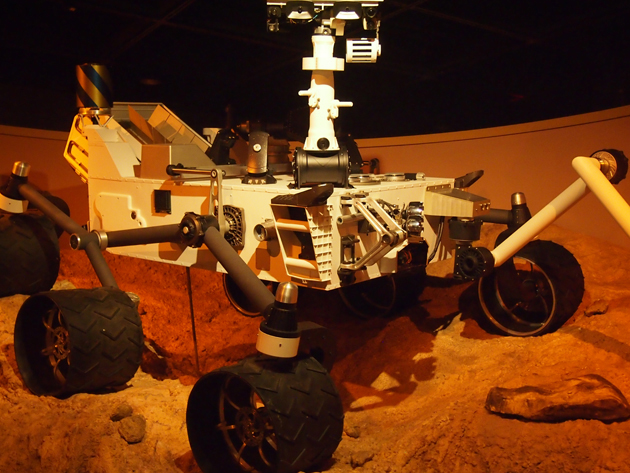
  • Journey to Mars: See a full-scale model of Curiosity, the 9-foot-long Mars Science Laboratory Rover and see a prototype of a sleek new space suit as you walk through a diorama of the Martian surface.
 
  • Outer Solar System: See what it would take to go even further into space—Jupiter's moon Europa.
 
  • Beyond Our Solar System: The exhibit ends with a look at what's next—"exoplanets" that have been detected only by NASA's orbiting Kepler space telescope.
 
    The American Museum of Natural History is located in New York City on Central Park West, between 77th and 81st Streets. It is open daily from 10am to 5:45pm and is closed on Thanksgiving and Christmas. Suggested general admission is $19 for adults, $14.50 for students and seniors, and $10.50 for children.


    Future Space Capsule

    In the future, astronauts might head to the International Space Station, the Moon, or even to asteroids and to Mars in a space capsule like this one currently being built for NASA by a team led by Lockheed Martin. (Image: AMNH\D. Finnin) 


    Russian Helmet

    This enamel-coated helmet is an original prototype of a helmet intended to be worn by cosmonauts (the Russian term for astronauts) on the Moon. By 1969, the top-secret Soviet manned lunar program was in disarray, and the program was later cancelled. 


    Vostok Capsule

    On April 12, 1961, Soviet fighter-pilot-turned-cosmonaut Yuri Gagarin became the first person in space. Flying in a simple spacecraft, the Vostok 1, Gagarin orbited the planet once during his 108-minute flight. (Image: AMNH\R. Mickens) 


    Lunar Sample Bag

    You can't exactly stuff moon rocks in your pocket. Astronauts stored samples in a bag like this one. 


    Mars Meteorite

    This piece of hardened lava came from Mars. After being knocked off the Martian surface by an asteroid or comet, it drifted in space for millions of years, until it reached Earth and fell to the ground as a meteorite. (Image: AMNH\D. Finnin) 


    Hubble

    The Hubble Space Telescope diorama re-creates a crucial moment in 2009, when astronaut John Grunsfeld installed the new Wide Field Camera 3, the device that currently captures many of Hubble’s most amazing images. (Image: AMNH\R. Mickens) 


    Beyond Planet Earth App

    With an iOS app, users can activate 11 augmented reality icons through the exhibition. They unlock animations and let visitors share images via email, Facebook, and Twitter, as well as access a site with space-themed links (Image: AMNH\D. Finnin) 


    Beyond Planet Earth App

    The app is available for the iPhone, fourth-generation iPod touch, and iPad 2. 


    Lunar Base Model

    A small-scale model of what a lunar base might look like. 


    Bigelow Moon Habitat

    Made with walls of reinforced fabric, expandable spacecraft like this model by the private space company Bigelow Aerospace—shown here in one-third scale—may one day house astronauts on the Moon. (Image: AMNH\D. Finnin) 


    Lunar Elevator

    If humans do set up a base on the Moon, we would eventually need a way to get materials to and from the Moon’s surface. Spacecraft have to travel 1.5 miles (2.4 kilometers) per second—faster than a speeding bullet— to launch off the surface of the Moon. A lunar elevator that would carry humans from the moon towards a space station where they would catch a ride back to Earth could sharply reduce that effort and expense. (Image: AMNH\D. Finnin) 


    Liquid Mirror Telescope Interactive

    Like all liquid mirror telescopes, this model relies on a a mirror that forms when a special liquid spins smoothly at a constant speed. The telescope reflects and focuses light toward a target, forming an image. 


    Mars Explorer

    Beyond Planet Earth visitors can fly around Mars and zoom in on cavernous craters, massive volcanoes, and vast valleys with Mars Explorer, an interactive console that debuts with this exhibition. 


    Sleep Tight

    Does this look comfortable? This diorama shows how astronauts would have to sleep. 


    Welcome to Mars

    Welcome, the Red Planet awaits.


    Test Yourself

    Could you survive life on Mars? Take the test. 


    Curiosity Rover

    Museum goers walk past a model of Curiosity, a rover scheduled to launch in late 2011 and reach Mars in August 2012. 


    Mars Rover

    A closer shot of the Mars Curiosity model. 


    BioSuit

    This "astronaut" is wearing BioSuit, a form-fitting next generation spacesuit prototype by MIT aeronautics and astronautics professor Dava Newman. 


    BioSuit

    These suits are made up of a tight, stretchy fabric made of spandex, nylon, and a new, patented polymer that replaces compressed air, making them lighter and more maneuverable. The suits maintain pressure even when torn and are custom-fitted using a laser scanner. 


    "Try On" a BioSuit

    Visitors to the exhibition can take their photographs in a model of a BioSuit on the surface of Mars. 


    Terraforming Interactive Table

    A multi-user interactive “game” will give Beyond Planet Earth visitors the task of “terraforming” Mars, transforming its cold, thin-aired surface into something more akin to Earth. 


    Posted by Love Ur Life 0 comments

    Saturday, 19 November 2011

    Things You Need to Know About Google Music


    Google just made its music cloud service, Google Music, available to all, and it's mostly self-explanatory: You go to music.google.com and start uploading or purchasing music that you can then listen to on your computer, or on your Android phone, Google TV, or iPhone. Just like iTunes, right? Well, not really. Maybe it's not so straightforward after all. Here are a few pointers that may help clear out some of the possible sources of confusion:

    1. It can automatically back up iTunes and most other music flies.  
    When you set up the service, you can tell it to upload your iTunes library, your Windows Media Player library, or any file folders you designate. The service supports more file types than competitors iTunes and Amazon Cloud Player. This  includes not just the MP3 and AAC formats those support, but also WMA, OGG, and FLAC. The latter are saved as 320 Kbps, even if your originals are of higher quality.

    2. It's two separate sites. 
    Google Music is the player and library, but you buy music on the Android Market site—whether or not you ever use any Android device. From the Google Music site, you can also download an app, Music Manager, that scans your PC or Mac for music files and upload it to your cloud-based music locker. The Android Market is where you browse, preview, and purchase new music, which then appears on your Google Music pages or in your Android Music app.

    3. You can't download songs to another computer unless you bought them on Google Music. 
    iTunes Match and Amazon Cloud Player let you download stored music to any computer or compatible mobile device.

    4. Some Android devices fully support it, some don't.
     There is, of course, an Android app, but that hasn't yet been updated with all the new features, and some phones and tablets still don't see music in the Android Market app yet. The whole point of Google Music is to finally give Android mobile users an equivalent to the iTunes services enjoyed by iPhone and iPad users. Google states that this will be updated within days, but it's unclear which phones and tablets' Android versions will be updated on what schedule. Some Android phones and plans, starting with T-Mobile, will even let you pay for music through your phone bill.

    5. There's no official iPhone app, but music. google. com works on iOS devices. 
    The Google Music site is even formatted well for iPhone screens. You can listen to any music in your Google Music cloud locker and even buy music from the separate Android Store, but you can't back up music on the iOS device to Google Music. Nor can you download music bought in the Android Music store to the iPhone directly (see #1 for how to do it indirectly).

    6. There's tons of free music. 
    But you need to give Google your credit card information even for the free stuff. This could be a concern to those who worry about Google profiling them.

    7. You can only share purchased songs to Google+. 
    If you do so, anyone following your Google+ profile will be able to stream the full song once. A Buy button is prominently displayed. Songs you uploaded but didn't buy at the Android Market don't get this treatment.


    Start Your Library

    There are two ways to start building your Google Music library: By downloading, installing, and running the Music Manager, or by buying it from the Android Market—even if you never touch an Android device. 


    Manager Wizard Login

    After you install the Music Manager, you'll start by logging into this setup wizard. Your first choice is where Google should look for music to upload. You also can send Google crash reports automatically if you want to help them improve the service. 


    Music Manager

    Double clicking the tray icon brings up the Music Manager interface, where you can add and remove folders for uploading. 


    Where to Keep Music

    You can have Google Music upload your iTunes library, Windows Media Player library, or any folder of songs. 


    Music Manager Advanced Tab

    Here you can change which folders to upload and download to, whether to start the app when you start the computer, and change the bandwidth usage. 


    Web Interface

    The default page for Google Music shows your album covers are displayed in good-size thumbnails in a grid, and play control buttons always remain along the bottom. 


    Play Album

    While playing an Album in Google Music, you'll see the track list, and drop down arrow that lets you add it to playlist, edit album info such as artist and year, delete it, or shop for more by the same artist. Note the thumbs-up icon at the right, which appears whenever you have the mouse over a track. 


    Song View

    I was happy to see that in the Song list view, I could select multiple tracks for deletion, since I had a bunch of sound effect files I didn't want adding to my song quota. 


    Android Market Music Store

    To buy songs, you have to jump out of the Google Music site to the Android web store. You can preview a minute and a half of any track. 


    Free Songs

    Google's music store includes lots of free songs. 


    Magnifier

    In fact, this whole Magnifier site showcases free tunes on Google Music. 


    Buying a Track

    After hitting the Buy button, you see a message like this. 


    Credit Card

    Even if you want to acquire a free song, you'll need to enter credit card info for a Google Wallet/Google Checkout account. 


    Purchase Complete

    Once your purchase is complete, you'll see this dialog, which offers the Android app or a link to play it on Google Music. 


    Purchased Choices

    If you buy music from Google, you get two more choices from a track's dropdown—share and download.

    Posted by Love Ur Life 0 comments