Reiciendis voluptatibus...

At vero eos et accusamus et iusto odio dignissimos ducimus qui blanditiis praesentium voluptatum deleniti atque corrupti...

Reiciendis voluptatibus maiores

Asumenda omnis dolor...

At vero eos et accusamus et iusto odio dignissimos ducimus qui blanditiis praesentium voluptatum deleniti atque corrupti...

Asumenda omnis dolor

Voluptates repudiandae ...

At vero eos et accusamus et iusto odio dignissimos ducimus qui blanditiis praesentium voluptatum deleniti atque corrupti...

Voluptates repudiandae sint

Necessitatibus saepe ev...

At vero eos et accusamus et iusto odio dignissimos ducimus qui blanditiis praesentium voluptatum deleniti atque corrupti...

Necessitatibus saepe eveniet

Omnis dolor repellendus...

At vero eos et accusamus et iusto odio dignissimos ducimus qui blanditiis praesentium voluptatum deleniti atque corrupti...

Omnis dolor repellendus

Pomnis voluptas assumen...

At vero eos et accusamus et iusto odio dignissimos ducimus qui blanditiis praesentium voluptatum deleniti atque corrupti...

Pomnis voluptas assumenda

Harum quidem rerum...

At vero eos et accusamus et iusto odio dignissimos ducimus qui blanditiis praesentium voluptatum deleniti atque corrupti...

Harum quidem rerum
  • Reiciendis voluptatibus maiores
  • Asumenda omnis dolor
  • Voluptates repudiandae sint
  • Necessitatibus saepe eveniet
  • Omnis dolor repellendus
  • Pomnis voluptas assumenda
  • Harum quidem rerum
Showing posts with label TABLETS. Show all posts

Sunday, 11 December 2011

Nook Tablet Specifications and Features


Super-Light and Portable

1/3 lighter than the leading tablet with an easy-to-hold soft touch design 
 
Height: 8.1 inches
Width: 5.0 inches
Depth: 0.48 inches
Weight: 14.1 ounces1
 

World's Most Advanced VividView™ Touchscreen

Remarkable clarity and minimal glare 
 
  •  7-inch VividView™ Color Touchscreen
  • 16 million+ colors, IPS2 display
  • High resolution display—1024 X 600, 169 pixels per inch (PPI)
  • Fully laminated with no air gaps for remarkable clarity and reduced reflection & glare-read indoors or outside

Adjustable Fonts

Customize your reading experience 
 
  • 8 text sizes, 6 font styles, change background colors, line and margin spacing
  • Look-up words in the built-in Merriam-Webster's Collegiate® Dictionary, Eleventh Edition

Web and Email

Surf your favorite sites and check & send email 
 
  • Enhanced Web browsing with video via Adobe® Flash® Player3
  • Check & send email all from one inbox (i.e., POP and IMAP webmail, including Yahoo, Gmail, Hotmail, AOL and others)
  • Parental controls to easily disable the Web browser

Built-in Wi-Fi®

Connect wirelessly in seconds 
 
  • Wireless connectivity via Wi-Fi® (802.11b/g/n)
  • FREE Wi-Fi® in all Barnes & Noble stores

Microphone


Record narration for kids' Read and Record™ books


Supported File Types4

Borrow library books, listen to music, watch videos & more 
 
  • Load EPUB (including Adobe DRM or DRM free) or PDF file types from your computer or microSD card
  • Other documents: XLS, DOC, PPT, TXT, DOCM, XLSM, PPTM, PPSX, PPSM, DOCX, XLX, PPTX
  • Watch videos in MP4, or Adobe Flash Player format, 3GP, 3G2 MKV, WEBM (Video Codecs: H.264, MPEG-4, H.263, VP8)
  • Supports Netflix video up to 720p and sideloaded video up to 1080p; renders at 1024 x 600
  • Load photos and create personal wallpaper: JPG, GIF, PNG, BMP
  • Play audio on built-in mono speaker: MP3, MP4, AAC, AMR, WAV, OGG (Audio Codecs MP3, AAC, AMR, LPCM, OGG Vorbis)  

Built for Speed


1GHz TI OMAP4 (dual-core) processor with 1GB RAM

Extra-Long Battery Life


  • Up to 11.5 hours of reading or 9 hours of video without recharging5
  • Installed rechargeable battery
  • Charge from a wall outlet using the in-box Power Adapter and USB Cable (charging time: approximately 3 hours from wall outlet)

Memory


Hold thousands of books, songs, videos, photos, & more 
  • 16 GB6 (up to 10,000 books) built-in memory (13 GB for content; 12 GB reserved for B&N content)
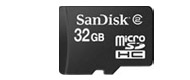
  • Add up to 32GB with microSD™7 memory card 

Pre-Loaded NOOK Apps™


Netflix, Hulu Plus, Pandora® internet radio, Chess, Crossword, Sudoku, Media Gallery, NOOK Friends™, Email

In the Box


  • NOOK Tablet
  • USB Cable
  • Quick Start Guide
  • Power Adapter
  • Rechargeable Battery (installed) 

Connectors


  • Universal 3.5 mm stereo headphone jack
  • Charging port
  • Expandable microSD8 slot 
Posted by Love Ur Life 0 comments

Thursday, 17 November 2011

The Best Kindle Fire Apps: A Starter Kit


Amazon's new seven-inch Kindle Fire ($199) is one of the most affordable tablets on the market. It runs apps for Android 2.3 and later, although there's a bit of a catch. The Fire is meant to run only apps from the Amazon.com Appstore for Android—not other Android marketplaces—which is a small subset of all the apps that are available for Android. However, PC Magazine's mobile analyst Sascha Segan discovered a workaround (see How to Run Almost Any Android App on the Kindle Fire). But even the workaround takes a little work. 

If you're a new Kindle Fire owner, you need a starter kit.

The 16 apps that we recommend downloading first are available right in the Amazon Appstore, so you can nab them simply and quickly. Your first dozen or so apps that you install should, in theory, be the ones you end up using the most. But again, because the Amazon Appstore holds only a limited sub-group of the Android apps ever made, the best of the bunch may seem a little lackluster, so far.

Having spent a lot of time trolling around the Amazon Appstore in September, when the Kindle Fire was announced, I can easily attest to the fact that the market place has many more apps now and is slightly easier to search than before. In fact, it's even easier on the tablet itself (not that it's especially "easy," just easier). I do expect that more apps will become available at a rapid-fire pace now that the Kindle Fire is out, but I don't expect people to hold their breath.

What's not on this list are apps that come pre-installed on the Kindle Fire, which includes: Pulse for music, Audible for audio books, IMBD for information about movies and actors, Quickoffice for working with Microsoft Documents, Facebook for social networking, as well as an app for email and one called Gallery that shows a gallery of videos and pictures on the device.

As a multimedia device, the Kindle Fire merges all of Amazon's services, including Amazon Web Services, Prime, Kindle, Instant Video, MP3, as well as Amazon's new web browser, Amazon Silk. You can shop for on Amazon, read books and magazines, watch movies, surf the Web, and listen to music. But there are a few things it can't do. The 14.6-ounce device doesn't have a camera, so apps for taking photos or recording video are out of the picture, although you can view photos and watch videos that are loaded from another device or that stream through an app. The Wi-Fi enabled Kindle Fire doesn't have a 3G option, so you need to either have a wireless signal nearby or to connect the tablet to a computer to get the full use out of it.

Despite all these things that it can and can't do off-the-shelf, the Fire is an Android tablet, so it has enhanced functionality with the help some apps.

Here are 16 apps that we think you'll want to download first from the Amazon Appstore before you take a little extra time to fully load up the Kindle Fire with other apps that aren't available through Amazon.


Astrid Task/Todo

free
Astrid Task/Todo is a favorite to-do list app for Android, with reminders, syncing capabilities, a widget for getting those reminders in front of you faster, and more. 


Convertr

$1.99
I'm always surprised how often I need a conversion calculator on all my mobile devices. Convertr is a great one for a tablet because it includes currency conversions, which I always want at hand while traveling. It also has templates for figuring out conversions on data rates, mass, length—and if you dive into the settings panel, dozen more that aren't shown off the bat.


Cut the Rope

99 cents
What I like about the physics puzzle game Cut the Rope is its appeal to a wide audience, young and old. It's challenging enough for a grown adult, yet simple enough for a six-year old. Cut the Rope also suits mobile devices as a true casual game, one that you can dip into and dip out of without any loss of continuity in the game. Some of the short levels are simple enough to complete in seconds, while others may take several minutes after multiple attempts. But the point is, it's the kind of game that doesn't punish you for putting the game down for a moment.


Dictionary.com

free
Dictionary.com is one reference app that I find immensely useful, in part because it keeps information local, letting you look up definitions and spellings even when you're not connected to a Wi-Fi line. I also love Dictionary.com pronunciation guide (I probably consult it more than definitions), as well as a word of the day. Students, either of the English language or some specialized field of study, will love the Favorites tab, where you can save words that you frequently look up. 


Dolphin Browser Mini

free
Even though the Kindle comes pre-packed with its own Web browser, it never hurts to have a back-up. Dolphin Browser is a veritable trickster of a mobile browser. You can change this Android app's look and feel through custom themes, add capability with Add-ons, or even navigate by gesture. When you encounter a pesky mobile site, you can don a disguise—for example, you can masquerade as an iPad—to unlock the un-cropped page. Flummoxed by Flash? No more, so long as you're running Dolphin and Android 2.2. The browser lacks a full synching service, but it does support Google Bookmarks. 


Easy Installer

free
This app is the one you need to install apps that aren't in the Amazon Appstore. Note that you will also need an Android smartphone, an SD card, and a computer. 


ESPN ScoreCenter

free
Sports fans will want to download an app for checking the score and following the news about their favorite teams and players. If you follow sports of all kinds, ESPN ScoreCeter should be on your Kindle Fire. It has the most comprehensive list of sports, leagues, and teams to follow, including soccer, cricket, and rugby. Another good one is Score Mobile (free), although it doesn't have rugby and it has a slight leaning toward American teams and leagues.


Evernote

free; $45 per year for optional subscription
If you weren't an early adopter of Evernote, the freemium note-taking and organization app that synchs all your files to a cloud service, there's no shame in being a late adopter of this outstanding service. Think of Evernote as your digital brain, a place to store everything from typed notes, to photos, to audio messages, to Web clips. The Evernote interface lets you access and search all your bits and pieces of information—anything you want to remember or be able to look up later. On every device, tablets included, Evernote works smoothly, looks great, and most importantly, integrates with dozens of other apps and services. What I like best about Evernote is how it automates synchronization, a fail-safe measure in case you forget to put your files back in the cloud when you're done working on them.


HootSuite

The Amazon Kindle Fire comes preloaded with an app for Facebook, but Twitter is not included out of the box. With the HootSuite app, it's no matter because you manage Facebook, Twitter, and Foursqure from one single interface. If those big three social services aren't enough to satisfy your social networking needs, try Seesmic, which supports Chatter and Google Buzz as well.


Hulu Plus

free to download; requires $7.99 per month subscription
One of the most popular video-streaming services, Hulu, announced early support for the Amazon Kindle Fire. The Hulu Plus app is free to download, but it requires a $7.99 per month subscription to watch most content, although the app does have a selection of free content, mostly selected episodes (the pilot of Ugly Betty, for example) or funny clips from popular television shows, with an occasional full-length movie thrown in. 


IMO Instant Messenger

free
As a near all-in-one instant messaging app, IMO supports chat on Skype, Facebook, Google Talk, MSN, ICQ, Yahoo, Jabber, and MySpace. Having one interface for all those programs makes for a much more elegant way to stay in touch with a technologically diverse set of friends.


LogMeIn Ignition

$29.99
This pricey app allows you to perform a pretty amazing feat: remotely control your home and office computers, and everything on them, from your Kindle Fire. For the app to work, you do have to install some software on your Windows or Mac PCs, but those programs are free, and you can install it on as many machines as you want. 


My-Cast Weather

$3.99
Slightly pricey for a weather app, the four-buck My-Cast Weather does not disappoint, with charts, maps, and other diagrams that display a variety of weather conditions and factors. A free version called My-Cast Weather Lite is also available.


Read It Later Pro

$2.99
With its Amazon Kindle roots firmly planted in reading, the Kindle Fire does make for a compact and friendly e-reader. The app Read It Later Pro lets you add web pages to your reading list, making them available offline to read whenever—even when you don't have a Wi-Fi signal. The app lets you tag pages, and saves your scrolling position as a bookmark, which you can pick up from any other device with the same app installed.


Wifi Analyzer

free
WiFi Analyzer is an app that helps you find not only the available Wi-Fi spots, but the networks with the strongest signal. A clear graphical report lists what's around you and shows its comparative strength in more detail than what an ordinary mobile device will show, indicating which network has the least amount of traffic and interference, too.


Wikidroid for Wikipedia

free
Looking up information on a tablet should not only be easy, but also something you do frequently. Otherwise, what's the point of having so much data at your fingertips? Wikidroid pulls articles from Wikipedia and optimizes their display for easy reading and searching from your mobile phone. The app has elegant search functionality, too.


Posted by Love Ur Life 0 comments

Sunday, 16 October 2011

Cisco Cius – Tablet for Enterprise


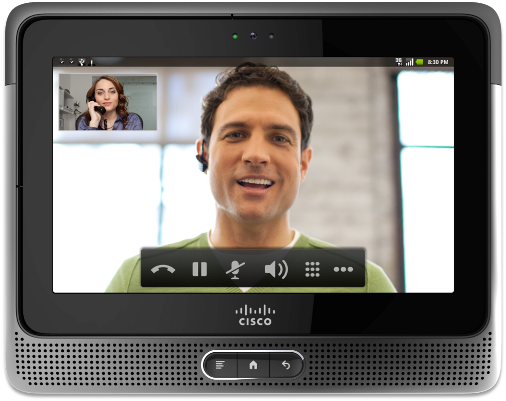
Cisco Cius is a 7-inch touch screen Android based tablet aimed at corporate clients. This is an ultra portable device, which provides enterprise solutions for the business requirements of companies. Some of the capabilities include communications, collaborations and computing. Besides taking care of the business needs of the company it satisfies an individual’s mobile, social, virtual and visual requirements.

Powered by 1.6GHz Intel Atom processor the Cisco Cius has a 1GB RAM with an expandable memory up to 32GB and dual front and back cameras. Wi-Fi, 4G and Bluetooth capabilities give you several options to remain connected.

Cisco Virtualization Client (CVX) with Virtual Experience Infrastructure brings together high quality voice, video and virtual desktop functionality. HD Video capability allow for face-to-face video chat besides using it as a simple phone.

With eight hours of battery backup, you can get a full day’s work done without the need to recharge.

Cisco Quad, Cisco Jabber IM, Cisco Unified Presence and WebEx Meeting Center are some of the collaboration applications available. It has been made compatible with existing Cisco Wireless LAN infrastructure while Cisco AnyConnect Secure Mobile Client gives you highly secure remote connections.

Cisco AppHQ provides several apps designed for businesses besides offering tools to create new apps. Though it supports outdated Android 2.2 (Froyo), it can use the thousands of apps from the Android Marketplace. Hopefully Cisco will upgrade to Android 3.1 (Honeycomb) soon.

Though expensive at $750 with an additional cost of $100 for the docking station, Cisco Cius is extremely enterprise friendly.
Posted by Love Ur Life 0 comments

Wednesday, 12 October 2011

How to buy the best tablet


It's difficult to remember a time before tablets, but it's been a mere 18 months since the first Apple iPad was released, and the current tablet market was born. Since then, we've seen scores of manufacturers trying to snag a slice of the tablet pie, which so far, has been dominated by Apple, who is now on its second iPad iteration. According to a study by Strategy Analytics, of the 7.5 million tablets that shipped during the second quarter, 80 percent were iPads, well ahead of those from rivals like Motorola, Samsung, RIM, Asus, and HTC. 

That's not stopping others from trying. And the result so far has been a float of difficult-to-distinguish tablets at various price points, performance capabilities, and feature sets. There hasn't really been another standout. The latest big name to throw its hat in the already-crowded tablet ring: Amazon. The company's Android-based Kindle Fire won't be available until mid-November, but it comes at a very pleasing $199—a price low that no quality tablet has been able to yet manage. It will be interesting to see what Amazon's entry means for both the iPad and the non-Apple tablet market share. 

So which of the plethora of deceivingly similar-looking tablets is worth your money? Let's look at the key factors you need to consider when shopping for a tablet:

First Off: Do You Even Need a Tablet?

Simply put, tablets aren't really filling any true need right now—they are neither replacements for full-fledged computers nor smartphones. A tablet is a touch-screen media device that is actually most similar to a very advanced portable media player—or an MP3 player with a much larger screen. Yes, many of them have mobile service features, but currently none of them make phone calls via a traditional mobile provider. And while you 
can tackle productivity tasks on a tablet, you won't get a desktop-grade operating system, like you'll find on a PC. Tablets are basically lightweight versions of laptops in every sense—they weigh less, and they're lighter on features. Plus, since we're talking about slate tablets here, you won't get a hardware keyboard. So if you're planning on doing any heavy-duty text input, you'll want to pick up a Bluetooth add-on keyboard. Still, the advantage tablets offer over laptops is an easy, portable way to check email, browse the Web, video chat, consume media, and play games, but with a much bigger screen with more real estate than your smartphone can provide. The bottom line is, you probably don't need one, but if you want a tablet, read on.

Pick an Operating System

Apple's iOS is the mobile platform used by the iPad, as well as the iPhone and iPod touch. On the iPad, iOS works very similarly to the way it does on the iPhone, with certain tweaks made here and there to take advantage of the tablet's larger 9.7-inch screen. The built-in iPod app on the iPad, for instance, has an extra side menu for additional navigation options that wouldn't fit on the iPhone's screen. Generally speaking, the great strength of Apple's iOS is twofold: it's incredibly intuitive, and the wide selection of iPad apps—more than 90,000 tablet-specific titles at the time of this writing—work uniformly well with very few exceptions.
Google's mobile OS, Android, is a more complicated story. Besides having your choice of hardware from several manufacturers, there are a few iterations of Android floating around right now, but only one—Android 3.0, Honeycomb—is designed specifically for tablets. This year, we've seen plenty of Honeycomb tablets, but some manufacturers are still making tablets with previous versions of Android that are meant for phones with much smaller screens, which doesn't provide the best tablet experience. Also, some Android tablets don't include access to the Android Market on the device, which means you have to sideload apps, which is less than ideal. 

Google's forthcoming Android revision, Ice Cream Sandwich, promises to merge Gingerbread (the phone OS) with Honeycomb (the tablet OS), for a single operating system for all Android devices. Ice Cream Sandwich is expected soon (this October or November), but if you're buying an Android tablet today, you want a Honeycomb tablet with the Android Market preloaded. The good news is that we're hearing from various tablet manufacturers that Honeycomb tablets will be upgradeable to Ice Cream Sandwich when the OS is released.
Android 3.0 has its benefits, including configurability, an excellent notification system, Adobe Flash support, and seamless integration with Google applications like Gmail, Google Maps, and Google Talk for video chat. For more, check out our Honeycomb review.

Lastly, there's RIM's QNX operating system, which runs on the company's BlackBerry PlayBook. Despite having a top-notch user interface with some promising features, like tight integration with BlackBerry smartphones, the PlayBook was released before it was ready, and five months later is still missing major features, like native email support. Until RIM gets its act together on the PlayBook, we can't recommend the tablet or the OS.

Ultimately, the operating system you choose will largely depend on your comfortability and personal preference. If you're unsure, get some hands-on time with a few tablets before you commit to one.

What About Apps?

Android lacks a strong selection of apps. It's tough to say exactly how many tablet-optimized Android apps are available, but it's in the low hundreds, and there are even fewer BlackBerry PlayBook apps than that. If you want lots of apps for your tablet, right now, nothing out there beats the iPad with its 90,000+ apps designed specifically for the tablet. Apple's App Store is well-curated and offers a deep selection—no competitor can come close to claiming this right now, partially because apps made for Android tablets have to work across multiple screen sizes, while iPad apps are designed for a single tablet. It sounds simple, but the variation in size (and manufacturers) complicates things greatly. Eventually, one hopes, the other app stores will catch up to Apple, but if a wide range of compelling apps is your main priority, Apple is currently your best bet.

Screen Size and Storage

This consideration is a bit obvious, but size—both screen real estate and storage capacity—is important to consider. First things first: When you hear the term "10-inch tablet," this typically refers to the size of the screen, measured diagonally, and not the size of the tablet itself. Apple continues to offer the iPad in one size only (9.7-inch screen) and the BlackBerry PlayBook comes in a single 7-inch screen size, which RIM argues gives it the advantage of pocketability. Samsung, for one, wants you to have a choice, so it offers its Android Galaxy Tab tablets in multiple screen sizes (7, 8.9, and 10.1 inches).
The weight of a tablet is one definite advantage it has over a laptop—but let's be clear, at around 1.3 pounds (in the case of the iPad 2) it's not cell-phone light—even a 7-inch model. After you hold one on the subway for ten minutes, your hand will get tired. Setting it flat in your lap, rather than propped up on a stand, can also be a little awkward. And, again, a 10-inch tablet doesn't fit in many pockets.

As for storage, the more the better—all those apps, when combined with a typical music, video, and photo library, can take up a lot of space. Right now storage tops out at 64GB of flash-based memory, with many of the quality tablets we've seen available in 16, 32, and 64GB varieties. Larger capacity models can get as expensive as full-featured laptops, especially when you factor in cellular service plans. (The top-end 64GB iPad with Verizon or AT&T wireless service will run you $830 plus a monthly fee.)

Wi-Fi-Only vs. Cellular Models

Many tablets come in a Wi-Fi-only model or with the option of always-on cellular service from a wireless provider. If you want to use your tablet to get online anywhere, you should opt for a model with a cell radio like the Verizon Samsung Galaxy Tab 10.1 or the AT&T Acer Iconia Tab A501. Of course, this adds to the device's price, and then you need to pay for cellular service. Generally, though, you can purchase data on a month-to-month basis, without signing a contract, and charges typically don't exceed $30 monthly, as long as you stay within data-usage limits.

Another way to get your tablet online: Use your 3G or 4G phone as a Wi-Fi hotspot for your tablet—this won't work with every phone/tablet combo, so you should check with the carriers before you buy in.

Posted by Love Ur Life 0 comments